
How to Use WebDAV File Storage with Echoterra Communications (Access Your Files Anywhere)
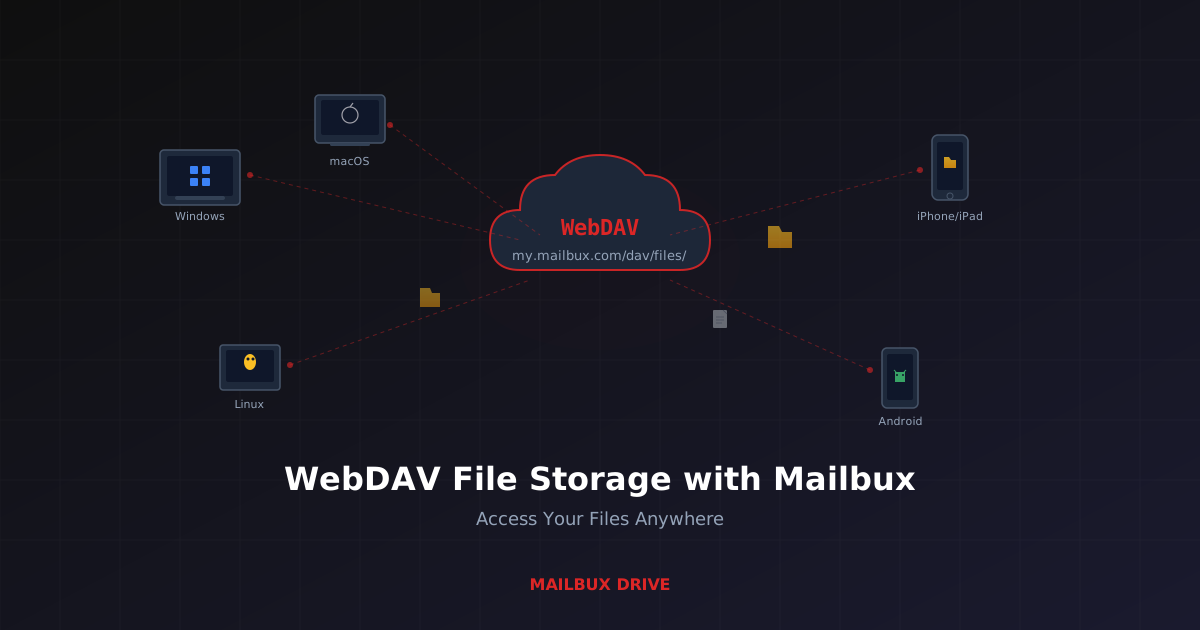
Every Echoterra Communications account includes Drive — a built-in file storage feature that lets you store, organize, and access documents from any device. Behind the scenes, Echoterra Communications Drive uses WebDAV, an open protocol that turns your email storage into a personal cloud drive. This guide explains what WebDAV is, how it works with Echoterra Communications, and how to connect from every major platform.
What Is WebDAV?
WebDAV (Web Distributed Authoring and Versioning) is an extension of HTTP that allows you to access and manage files stored on a remote server. Think of it as a universal protocol for turning any server into a cloud drive — similar to how IMAP lets any email client read your mail, WebDAV lets any file manager access your files.
Unlike proprietary cloud storage services that require their own app, WebDAV works with the file managers already built into Windows, macOS, and Linux. It also works with dozens of third-party apps on iPhone and Android. No special software from Echoterra Communications is needed — just your operating system's native tools.
Echoterra Communications Drive and WebDAV
Every email account on Echoterra Communications includes Drive storage accessible via WebDAV. When you create a Echoterra Communications account and add email addresses, each address automatically gets its own file storage space. You can upload documents, photos, spreadsheets, and any other files — then access them from any device with an internet connection.
Your WebDAV Connection Details
| Setting | Value |
|---|---|
| WebDAV URL | https://mail.echoterra.net/dav/files/ |
| Username | Your full email address (e.g., you@yourdomain.com) |
| Password | Your email password |
That is all you need. The same email address and password you use to log into webmail or configure your email client also authenticate your WebDAV connection.
Setup Guide: Windows
Windows has built-in WebDAV support through the "Map Network Drive" feature.
- Open File Explorer and right-click on This PC (or My Computer)
- Select Map network drive...
- Choose a drive letter (e.g., Z:)
- In the Folder field, enter:
https://mail.echoterra.net/dav/files/ - Check "Connect using different credentials"
- Click Finish
- When prompted, enter your full email address as the username and your email password
- Check "Remember my credentials" if you want automatic reconnection
Your Echoterra Communications Drive now appears as a regular drive letter in File Explorer. You can drag and drop files, create folders, and manage documents just like any local drive.
Tip: If Windows gives a connection error, open Services (services.msc) and make sure the WebClient service is running and set to Automatic.
Setup Guide: macOS
macOS supports WebDAV natively through Finder.
- Open Finder
- In the menu bar, click Go then Connect to Server... (or press Command + K)
- Enter the server address:
https://mail.echoterra.net/dav/files/ - Click Connect
- When prompted, select Registered User
- Enter your full email address as the name and your email password
- Click Connect
Your Echoterra Communications Drive mounts in Finder under Locations in the sidebar. You can browse, copy, and manage files as if they were on a local disk. To reconnect automatically on login, go to System Settings > General > Login Items and add the mounted drive.
Setup Guide: Linux
Most Linux desktop environments support WebDAV through their file managers.
GNOME (Nautilus / Files)
- Open Files (Nautilus)
- Click Other Locations in the sidebar
- In the Connect to Server field at the bottom, enter:
davs://mail.echoterra.net/dav/files/ - Press Enter (or click Connect)
- Enter your full email address and password when prompted
KDE (Dolphin)
- Open Dolphin
- In the address bar, type:
webdavs://mail.echoterra.net/dav/files/ - Press Enter
- Authenticate with your email address and password
Command Line (mount.davfs)
- Install davfs2:
sudo apt install davfs2(Debian/Ubuntu) orsudo dnf install davfs2(Fedora) - Create a mount point:
sudo mkdir /mnt/echoterra communications - Mount:
sudo mount -t davfs https://mail.echoterra.net/dav/files/ /mnt/echoterra communications - Enter your email address and password when prompted
For persistent mounts, add the credentials to /etc/davfs2/secrets and an entry to /etc/fstab.
Setup Guide: iPhone and iPad
iOS does not have built-in WebDAV support in the Files app, but several excellent apps fill the gap.
Documents by Readdle (Free)
- Download Documents by Readdle from the App Store
- Open the app and tap the + button, then Add Connection
- Select WebDAV Server
- Enter the URL:
https://mail.echoterra.net/dav/files/ - Enter your full email address and password
- Tap Done
Your Echoterra Communications Drive appears as a connected storage location. You can browse files, open documents, play media, and upload photos directly from your iPhone or iPad.
WebDAV Navigator (Alternative)
Another solid option is WebDAV Navigator, available on the App Store. Setup is similar — enter the WebDAV URL, email address, and password.
Setup Guide: Android
Android has several file managers with WebDAV support. Here are the top options.
Solid Explorer
- Download Solid Explorer from Google Play
- Tap the + button and select New cloud connection
- Choose WebDAV
- Enter the server:
mail.echoterra.net - Set the path to:
/dav/files/ - Make sure HTTPS is selected
- Enter your full email address and password
- Tap Next then Connect
Total Commander with WebDAV Plugin
- Install Total Commander and the WebDAV plugin from Google Play
- Open Total Commander and tap WebDAV
- Add a new server with URL
https://mail.echoterra.net/dav/files/ - Enter your credentials and save
FolderSync
FolderSync is ideal if you want automatic two-way sync between your phone and Echoterra Communications Drive. Set up a WebDAV account, then create sync rules for specific folders — for example, automatically back up your camera roll to Echoterra Communications Drive every night.
What Can You Do with Echoterra Communications Drive?
Once connected, your Echoterra Communications Drive is a full cloud storage solution. Common use cases include:
- Back up important documents — store contracts, invoices, tax records, and other critical files in your Echoterra Communications Drive so they are accessible from anywhere and not tied to a single device
- Share files across devices — save a file from your laptop, then open it on your phone or tablet without emailing it to yourself
- Work on the go — access spreadsheets, presentations, and documents from your phone when you are away from your computer
- Photo backup — use FolderSync on Android or Documents by Readdle on iOS to automatically back up photos to your Echoterra Communications Drive
- Centralized storage for your business — keep team documents in one place under your custom domain
Storage and Plan Limits
Echoterra Communications Drive storage is shared with your email. Your plan's total storage allocation covers both your inbox and your Drive files. For example, if your plan includes 7 GB of storage, that 7 GB is split between emails you receive and files you upload to Drive.
You can check your current storage usage from your Echoterra Communications dashboard. If you need more space, upgrading your plan increases the total storage available for both email and Drive.
Troubleshooting
"Connection Refused" or "Cannot Connect"
- Verify the URL is exactly
https://mail.echoterra.net/dav/files/— note the trailing slash - Make sure you are using HTTPS, not HTTP
- Check that your network does not block outbound HTTPS traffic (port 443)
- On Linux, use
davs://(GNOME) orwebdavs://(KDE) — the "s" indicates SSL
"Authentication Failed"
- Use your full email address as the username — for example,
hello@yourdomain.com, not justhello - Double-check your password — try logging into Echoterra Communications webmail to confirm it works
- If you recently changed your password, make sure the WebDAV client is using the new one
"Slow Uploads" or Timeouts
- WebDAV performance depends on your internet connection speed — uploading large files on a slow connection will take time
- Some corporate firewalls or VPNs throttle WebDAV traffic. Try connecting without the VPN to test
- On Windows, the default WebClient service has a 50 MB file size limit. To increase it, edit the registry key
HKEY_LOCAL_MACHINE\SYSTEM\CurrentControlSet\Services\WebClient\Parameters\FileSizeLimitInBytesand restart the WebClient service
"Files Not Showing" After Upload
- Some file managers cache the directory listing. Refresh the folder or disconnect and reconnect
- On macOS, press Command + R in Finder to refresh
- On Windows, press F5 in File Explorer
Final Thoughts
Echoterra Communications Drive with WebDAV gives you a personal cloud storage solution that works with every major operating system — no proprietary apps, no ecosystem lock-in. Your files live alongside your email under your own custom domain, accessible from Windows, macOS, Linux, iPhone, and Android using built-in tools or free apps.
Whether you need to back up business documents, sync files across devices, or simply access your files from anywhere, WebDAV makes it simple and universal.
New to Echoterra Communications? Create your free account — 7 GB storage, custom domain email, and Drive with WebDAV access included. Your files, your domain, accessible everywhere.